Build Project
The Build Project command compiles the active project and helps identify possible errors or warnings. Once the build process completes successfully, the project becomes ready to run. The Build Project option under the Run menu in the IDE initiates the compilation process for the currently open project. During this process, any issues such as missing definitions, syntax errors, or configuration problems are reported to the user.
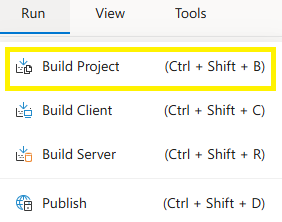
Steps:
- Click the Run tab from the top menu.
- Select the Build Project option or press the
Ctrl + Shift + Bshortcut. - The build process will start, and progress will be displayed at the bottom of the IDE screen.
- Once complete, the system will notify you whether the build was successful or if errors occurred. You cannot run the project before the build is successfully completed.
Features
- Error Identification: Helps detect syntax issues, missing references, or misconfigurations before running the project.
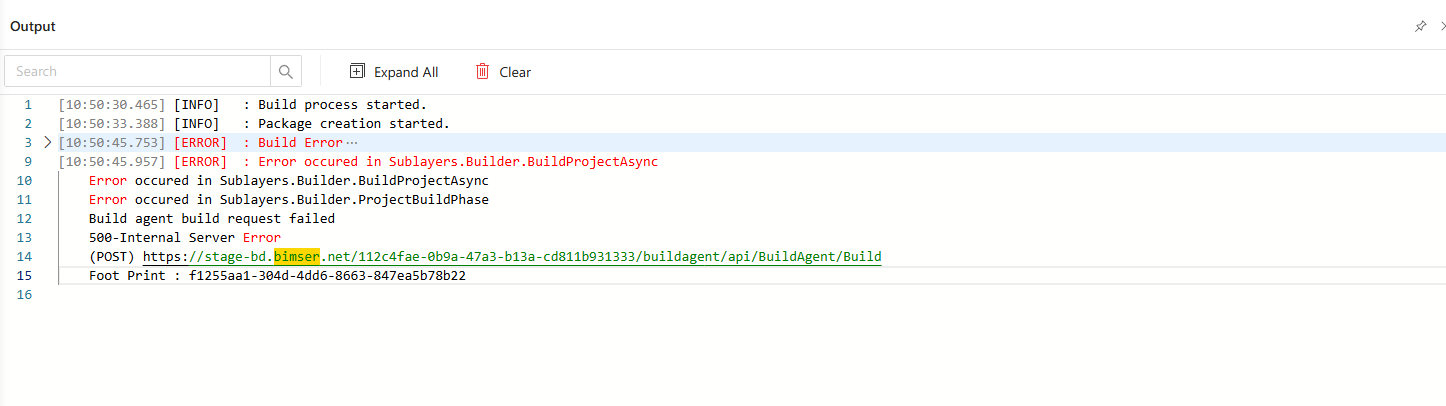
- Build Output Panel: Displays progress and result messages in real time.
- Shortcut Support: Easily accessible via keyboard shortcut
Ctrl + Shift + B. - Precondition for Run: Ensures the project is in a runnable state by compiling the full structure.
Notes
- The build process compiles only the currently open project. Dependencies in other projects must be handled separately.
- If a build fails, detailed error messages are shown in the Output Panel at the bottom of the screen.
- You must build the project before attempting to publish or run it.
FAQs
- Why Is The Build Project Option Disabled
- Why Does The Build Process Fail
- Can I Customize The Build Process Or Rules
- What Files Are Validated During Build
- Can I Build Multiple Projects At Once
- Is There A Shortcut To Build A Project
- Where Can I See Build Errors
- Does Saving Trigger The Build Process